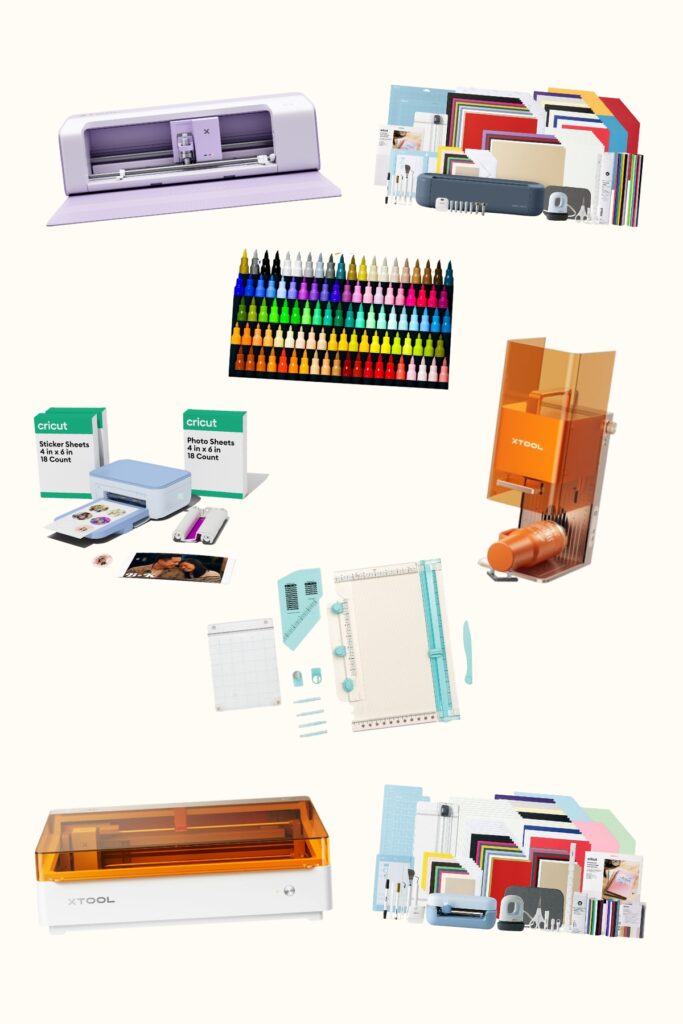
xTool C1 Color Cutter: Ultimate Guide
I got a sneak peek at the xTool C1 Color Cutter, a brand-new product line that scans, prints, and cuts materials. With a built-in inkjet printer and scanner, the C1 adds two features that many long-time Cricut and Silhouette users will welcome. I made a variety of projects out of cardstock, sticker paper, and vinyl to put it to the test. The results blew me away.
This review is sponsored by xTool, but all opinions expressed are my own. This post also contains affiliate links, and I will receive a small commission if you make a purchase after clicking on my links. See disclosures for details.
xTool C1 Color Cutter: Quick Overview
For years, I’ve written about xTool’s best-in-class laser machines. With the launch of the C1 Color Cutter, xTool is officially entering the cutting machine market.
The biggest features that set the C1 apart are the built-in inkjet printer and scanner. No other craft machine for hobbyists combines both features in a single cutting machine.
Watch This Review on YouTube
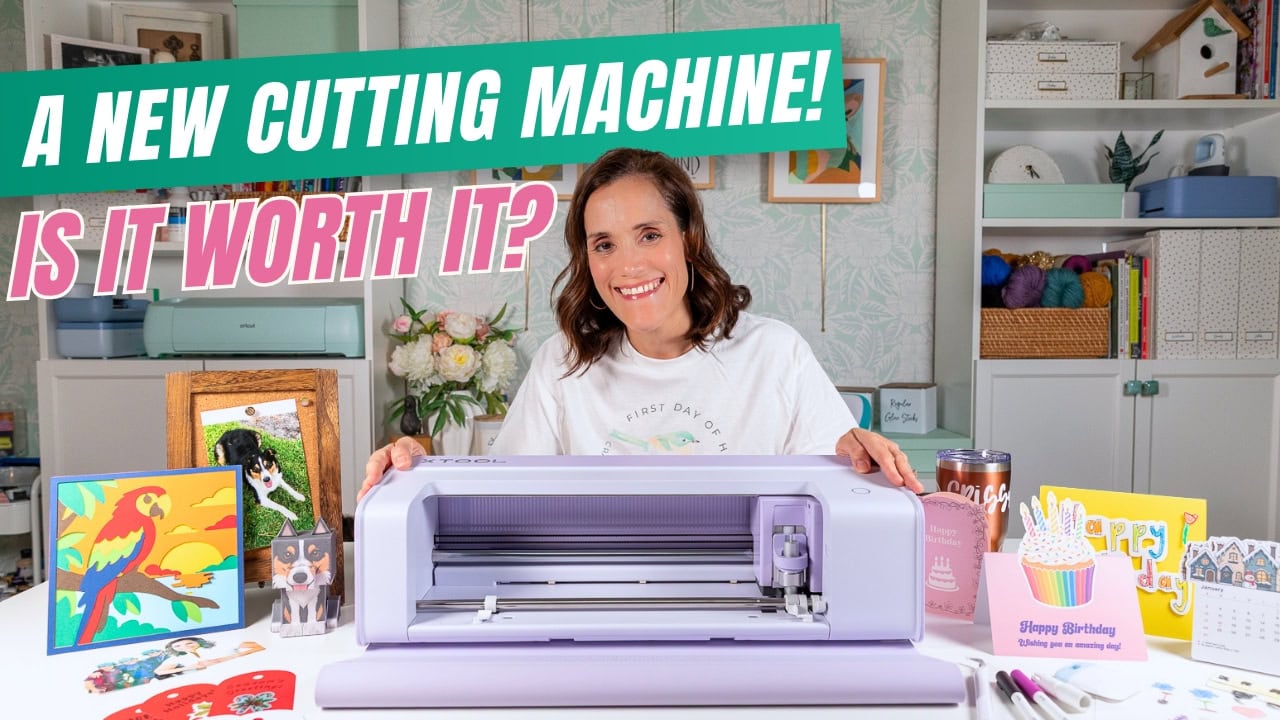
xTool first introduced printing and blade-cutting technology with its M-series hybrid machines. However, those machines still focused heavily on combining laser cutting and blade cutting. The C1 now competes head-on with brands like Cricut and Silhouette Cameo.
C1 Key Product Features
The C1 offers many of the features you know and love from other cutting machines: blade cutting, scoring, foiling, and drawing (to name a few). To enhance the machine’s capabilities, xTool also added live preview and printing features to the C1.
Live preview streamlines the crafting process. It enables precise positioning and minimal waste.
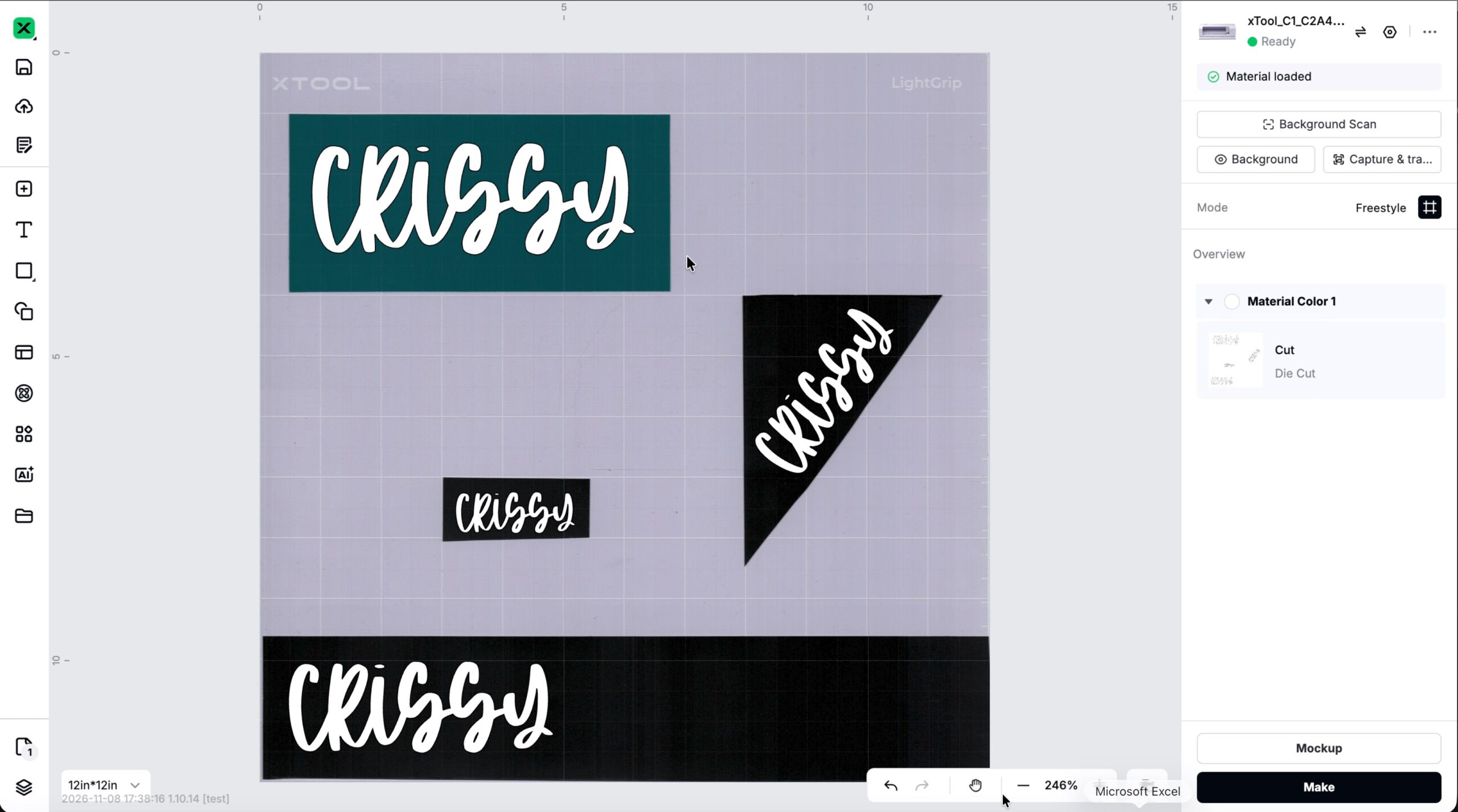
The embedded Contact Image Sensor scans materials loaded onto the xTool cutting mat to capture the background. No more guessing where to line up vinyl scraps!
The scanner also recognizes xTool-branded materials based on QR codes. This removes the extra step of defining the material and cut settings before processing a design. (You can also use non-branded materials and search for comparable cut settings in the software.)
Built-in printing opens up even more possibilities. The C1’s thermal inkjet cartridge enables 4-color CMYK printing and can produce waterproof designs on xTool materials with the DURA label.
I made a few waterproof stickers and a T-shirt with my logo (pictured below) using this DURA technology.

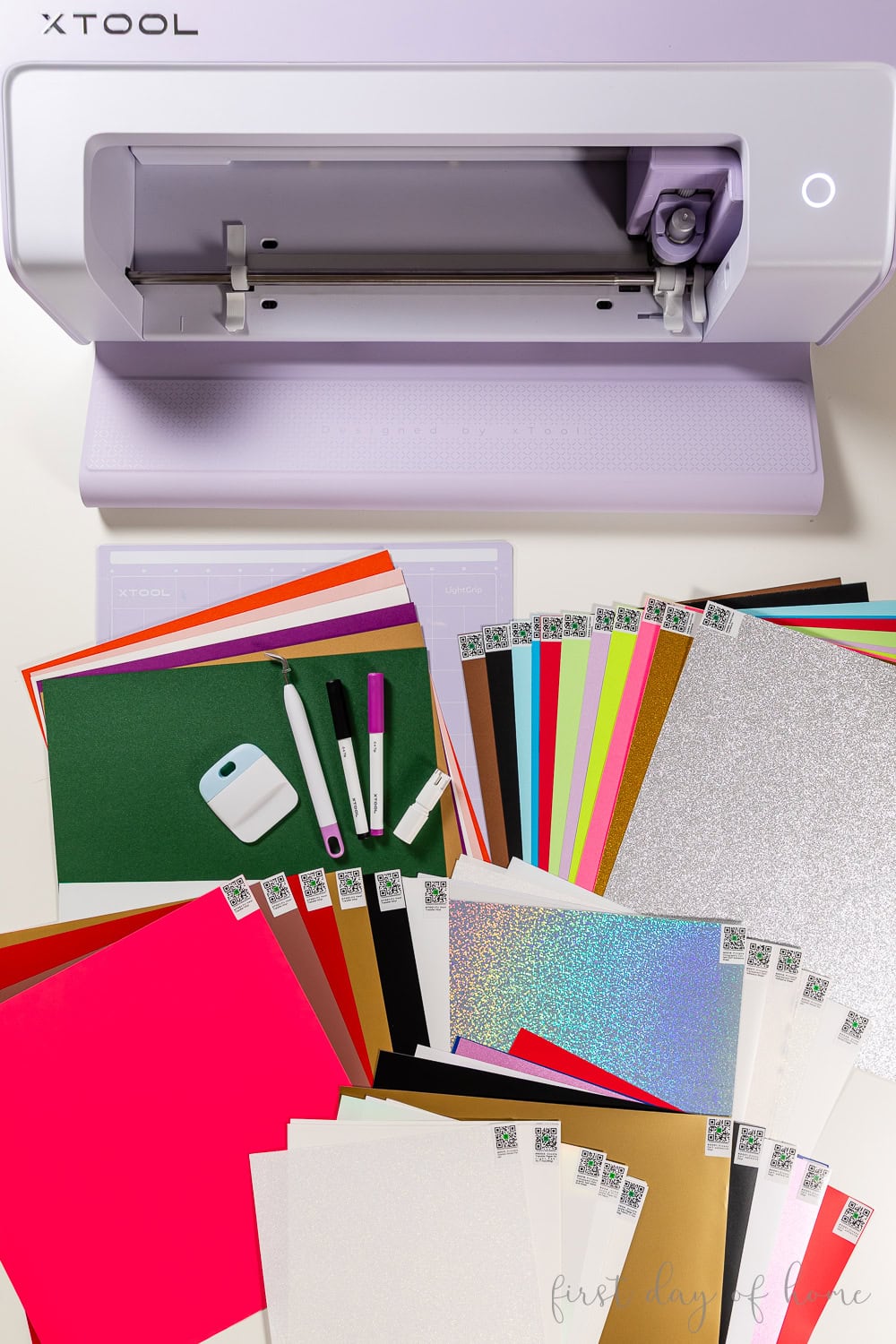
The initial C1 basic bundle includes pens, a fine-point blade, a weeding tool, a scraper tool, and a light-grip cutting mat. xTool will soon release accessories like the following:
- Foil transfer tip and scoring tool
- Hot foil pen
- Rotary blade
- Deep-point blade
Stay tuned!
What materials can the C1 process?
Like the typical Cricut Explore/Maker machines, the xTool C1 can handle a wide range of materials. My Deluxe Bundle included cardstock, self-adhesive vinyl, heat-transfer vinyl, various sticker paper sheets, and printable transfer paper.
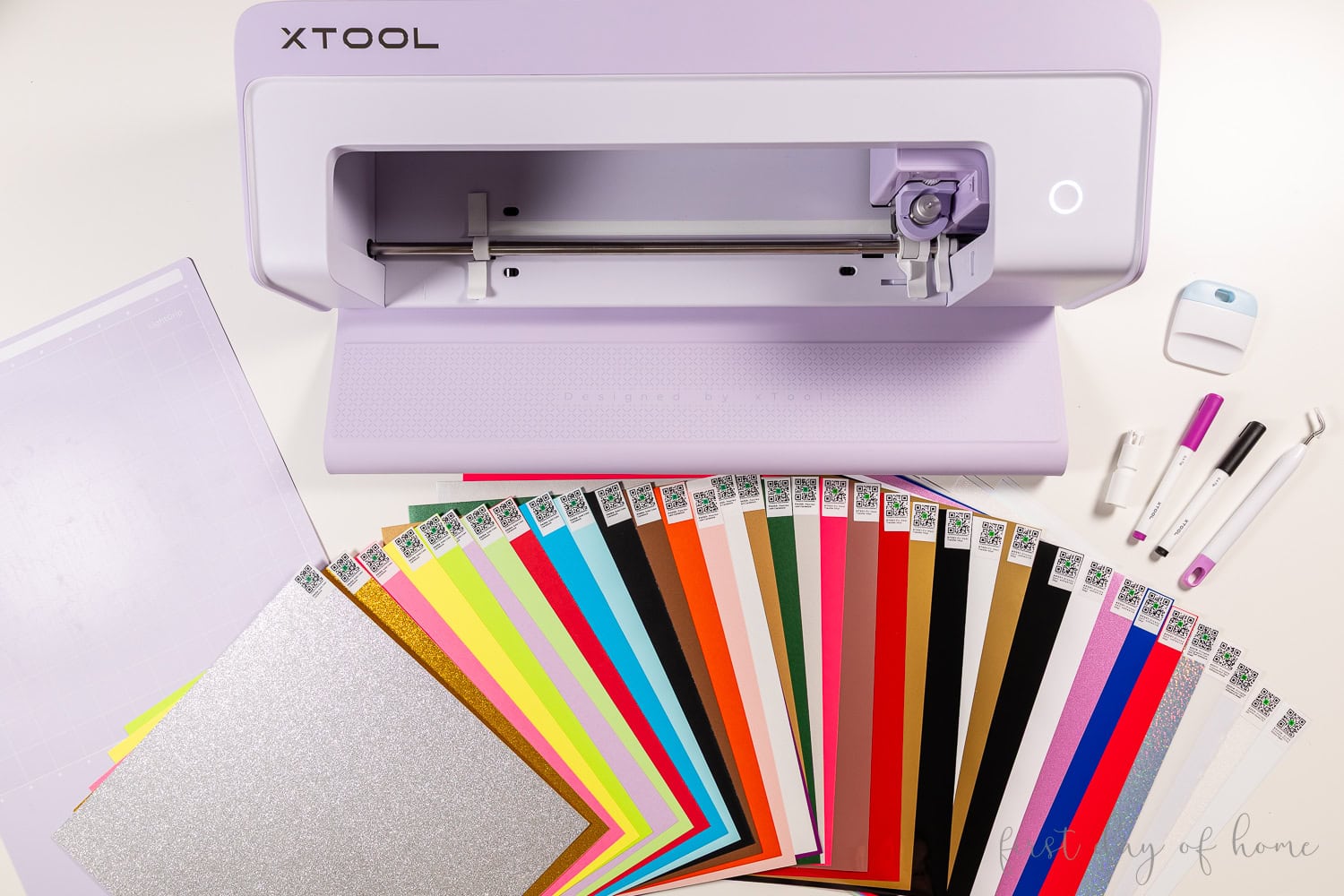
The most exciting materials are the various types of printable sticker papers and printable transfer paper you can apply to light or dark fabric. You can now make holographic stickers or transparent stickers without a home printer or any extra laminating steps.
The company will soon release accessories that can process materials up to 3mm thick, putting it on par with Cricut’s latest Maker 5 model.
What types of projects can you make with the C1?
The xTool C1 can do all the typical paper-crafting and vinyl-transfer projects you might expect. The most interesting projects are ones I couldn’t do easily with my Cricut machines.
Paper Crafts
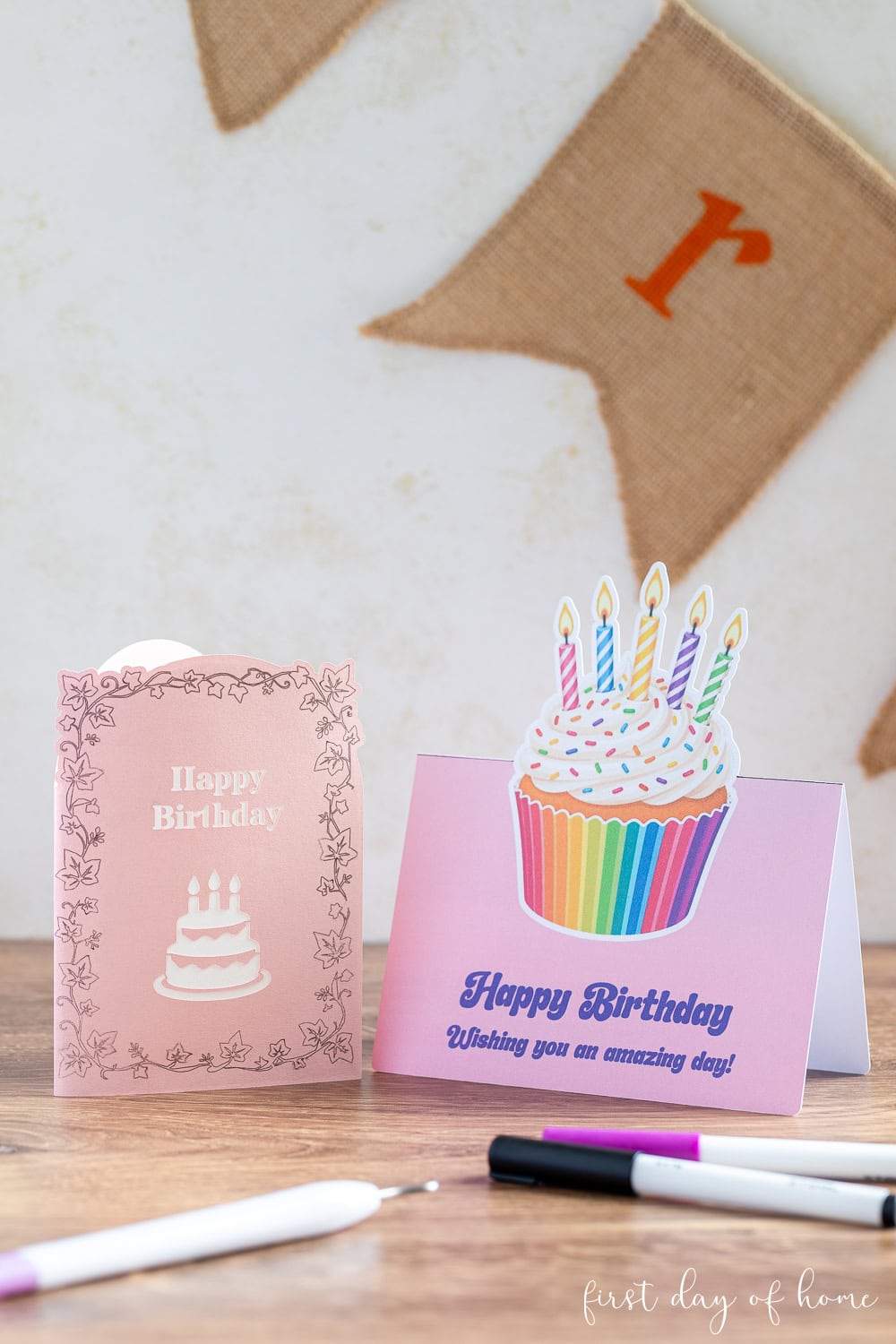
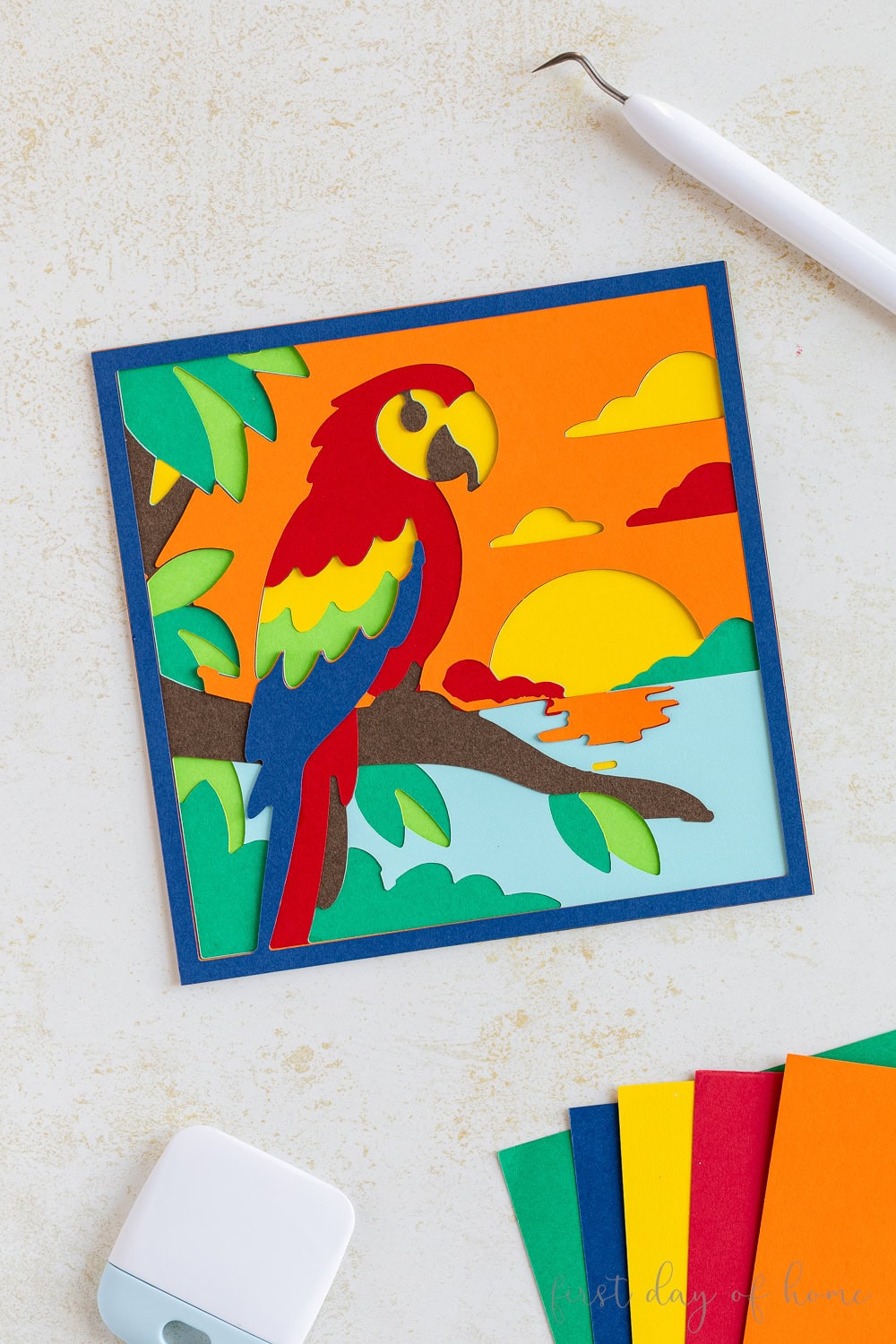
The C1 handles paper crafts like cutout cards, gift tags, and artwork with ease. With the added benefit of AI-generation tools, you can also design more advanced projects.
I used the Layered Papercut Generator and a text prompt to create this unique layered parrot artwork.
Stickers
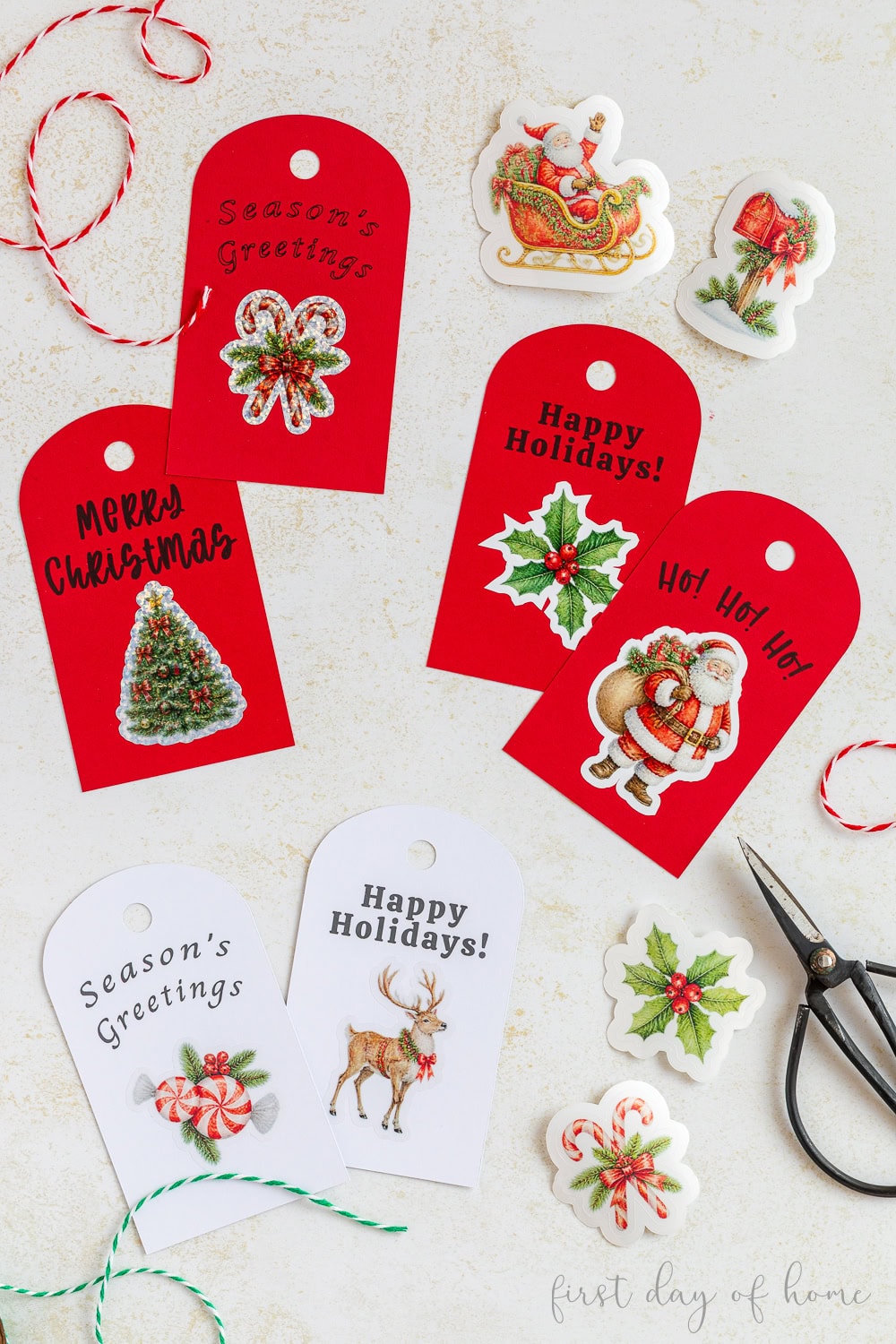
The most buzz will center on stickers because they’re one of the hardest projects to make with traditional Cricut machines, requiring a two-step process involving a home printer.
With the C1, I designed holiday gift tags using a mix of drawn and printed text. Then, I printed and cut a mix of holographic, glossy, and transparent stickers to affix on the front. Oh, and the stickers were all generated with a text prompt within the software!
Scanned Artwork
Beyond the incredible designs you can create within the software, you can also upload your own hand-drawn doodles to cut out or make into stickers.

One of my sons colored a sheet of paper that I scanned into the C1. Not only did the machine cut out the images, but it also allowed me to create sticker sheets using the same images.
What software does the C1 Color Cutter use?
To get started designing, you’ll need xTool’s free software called xTool Studio. Within the software, you can create designs from scratch, use AI-generated designs, or upload your own artwork.
Atomm AI Generators
The AI-powered Atomm Creation Suite truly brings ideas to life. Here, you’ll find AI tools, called “Generators,” that build custom designs using preset elements or text prompts. Each generator produces a design file you can save or import directly into xTool Studio.
For example, the 3D Pet Generator lets users upload a pet photo to generate a three-dimensional pattern. With one click, you can import the design into xTool Studio to print and cut with the C1.
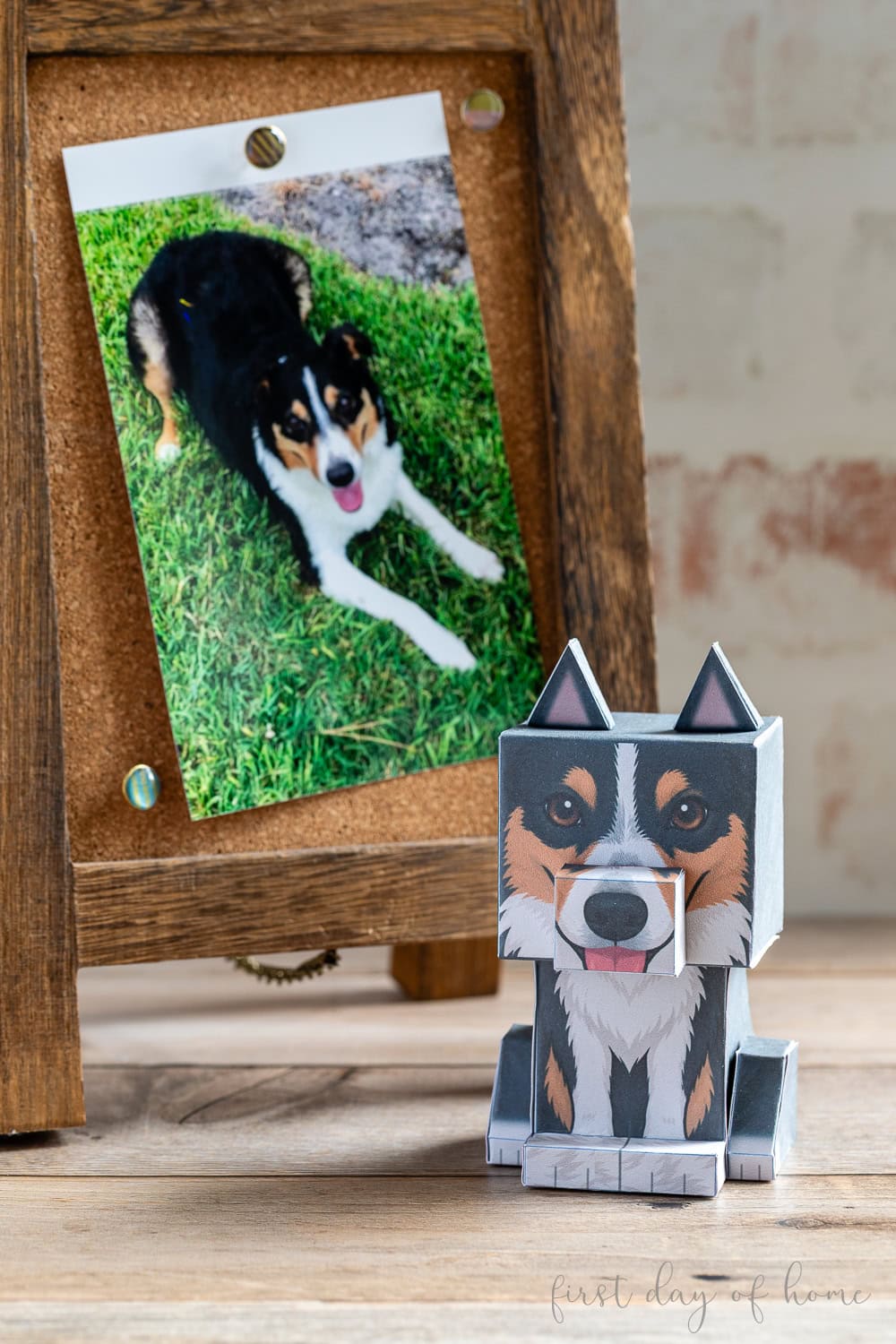
You can find C1-compatible generators in the C1 Hub on Atomm.
How does the C1 Color Cutter compare to Cricut?
The xTool C1 competes most directly with Cricut’s Maker series. There are some key differences between the machines and the software that powers them.
Hardware Comparison
From a hardware perspective, xTool’s C1 has a major advantage over the Cricut suite of products, mainly because of its scanner and printer functions.
The xTool C1 is significantly larger and about 2 pounds heavier than the latest Cricut Maker 5. However, that trade-off is understandable, since you don’t need a separate printer or scanner for advanced projects. Still, it’s a consideration based on your space constraints.
Live Preview
xTool’s scanner removes a significant pain point for Cricut users. It helps you use vinyl scraps more effectively and avoids positioning mistakes that can happen when cutting irregularly shaped materials.
Cricut offers SnapMat as a workaround for a live preview, but this requires taking a photo on a mobile device or tablet. The results aren’t always reliable, and the feature isn’t available on desktop computers.
Printing Comparison
To make projects like stickers on a compatible Cricut machine (Explore/Maker/Joy2), you must first print the design on an inkjet printer. Cricut Design Space generates registration marks on the printed sheet that the machine reads to determine where to cut the designs. The registration marks limit how much space you can print on the page.
The xTool C1 doesn’t require registration marks, so you can print and cut a whole 12 x 12-inch sticker sheet of designs, all within the machine.
Software Comparison
While xTool has invested heavily in AI-powered features, Cricut has a vast library of designs in Cricut Design Space that make it easy for beginners to find accessible projects.
After using xTool’s Atomm suite of templates and generators, I believe the software requires a bit more design savvy than Cricut Design Space. You must be comfortable working with layers and refining designs, grouping and ungrouping elements as necessary.
Many users will find the advanced features and design flexibility liberating, while complete beginners might find it slightly overwhelming.
However, xTool has a thriving creator community, so beginners can find simple projects with instructions from community members before diving into more advanced templates and AI generators.
Tools and Materials Comparison
Cricut has a slight first-mover advantage with a vast collection of tools and accessories for its machines. However, xTool has many comparable blades and accessories planned for the C1, including foil tips, rotary blades, and deep-point blades.
Cricut machines also have a separate housing for pens and blades, while the C1 requires manual switching. However, the C1 offers other time savings, especially for print-and-cut projects.
Notably, the C1 pen holder also works with Cricut-branded pens (prior to Maker 5/Explore 5), which may appeal to existing Cricut users looking to switch. Cricut mats will also work on the C1, though the live preview feature will not work.
Pricing Comparison
The xTool C1 and Cricut Maker 5 are comparable in price for the Base and Deluxe models. You’ll also receive a 1-month subscription to the Atomm Creation Suite with the C1 bundles at launch.
The C1’s ink cartridge replacement cost is $59 as of this writing. According to xTool, the cartridge will last up to 100 pages of high-quality printing on A4 paper.
I’ve included more FAQs below, but drop me a line if you have any questions about the xTool C1, and don’t forget to pin this for later!

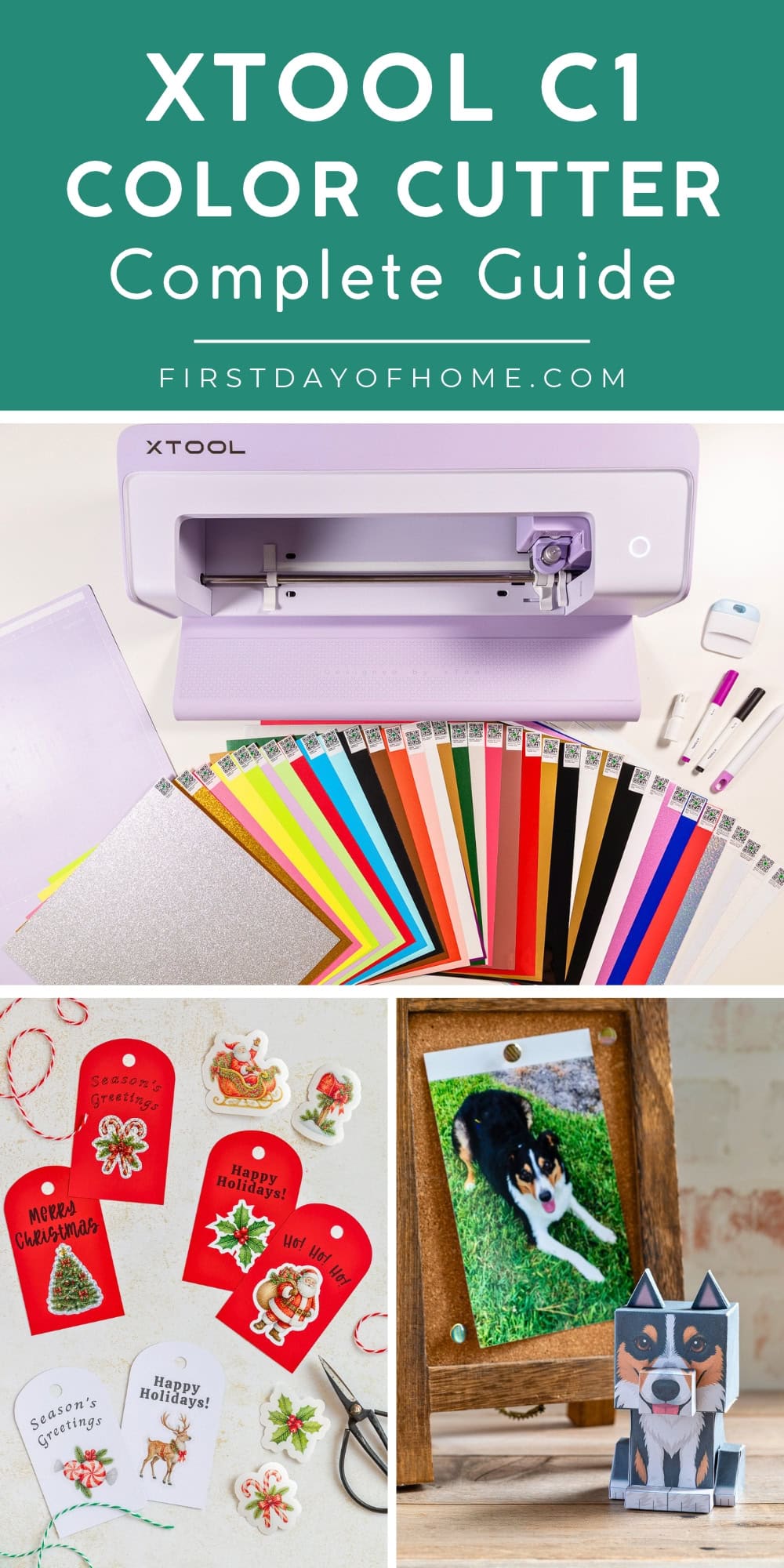
Pin it for later!
Frequently Asked Questions (FAQs)
-
What is the thickest material the xTool C1 can cut?
The xTool C1 can cut certain materials up to 3mm thick with the appropriate blade and mat.
-
How often does the ink cartridge need to be replaced?
The xTool C1 ink cartridge will last up to 100 high-quality, full-page prints on A4 paper.
-
How much will ink cartridge replacements cost?
The xTool C1 ink cartridge replacement will cost $59 at launch.
-
Can you use non-branded materials?
Yes, the xTool C1 is compatible with materials from other brands, though the machine will not automatically recognize those materials. However, you can search for appropriate cut settings or create custom settings in xTool Studio.
-
Can the xTool C1 engrave materials?
No. At this time, xTool does not offer an engraving tip for the C1.
-
Can the xTool C1 cut fabric?
Yes, the xTool C1 can cut fabric such as denim, canvas, and felt, with a rotary blade.
-
Can the xTool C1 cut wood?
Yes, the C1 will have the ability to cut balsa wood and basswood plywood (up to 2mm) with a cutting blade.